How do I take an order and get paid?
Ring up items on the POS, choose the order type, send it to the kitchen and take a cash payment with the right change.
- Who can do this
- Cashier or server
- Owner
- Manager
Their role needs permission to take orders and take payments.
- Applies to
- Every business type
- Needs the Orders module
Use this when a customer is at the counter or table and you need to ring up what they ordered, send it to the kitchen and take their money.
Before you start
- Your menu has at least one item. See How do I add an item to my menu? (article coming soon).
- Your VAT rate is set, so totals and receipts are right. See How do I set my VAT rate? (article coming soon).
- To take cash, your cash shift is open.
Take the order
Step 1: Add the items
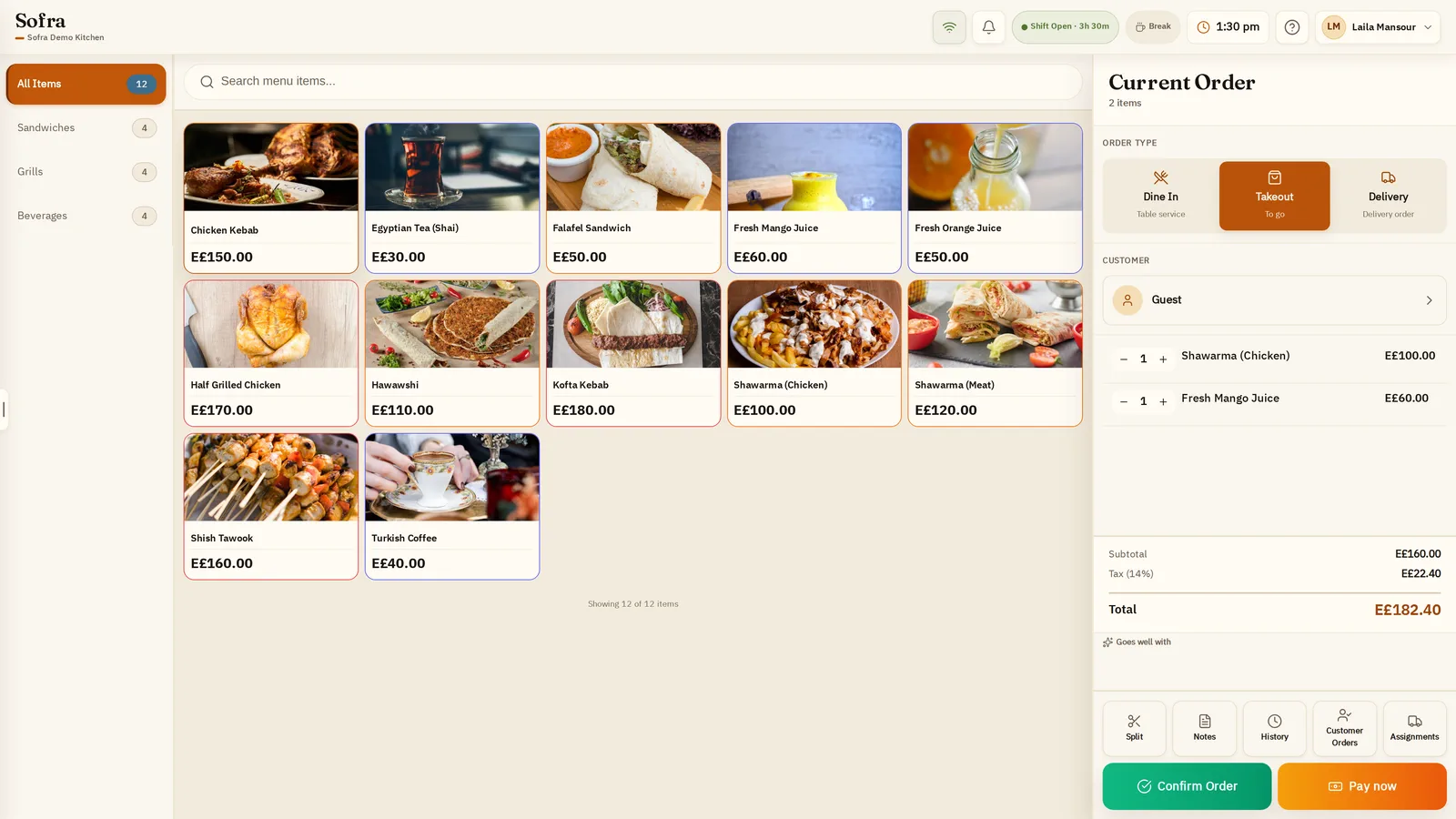
Open the POS. While the order is empty it says Tap items to start order. Tap each item the customer wants. Tap an item again to add another one. The items and the total appear under Current Order.
Step 2: Choose the order type
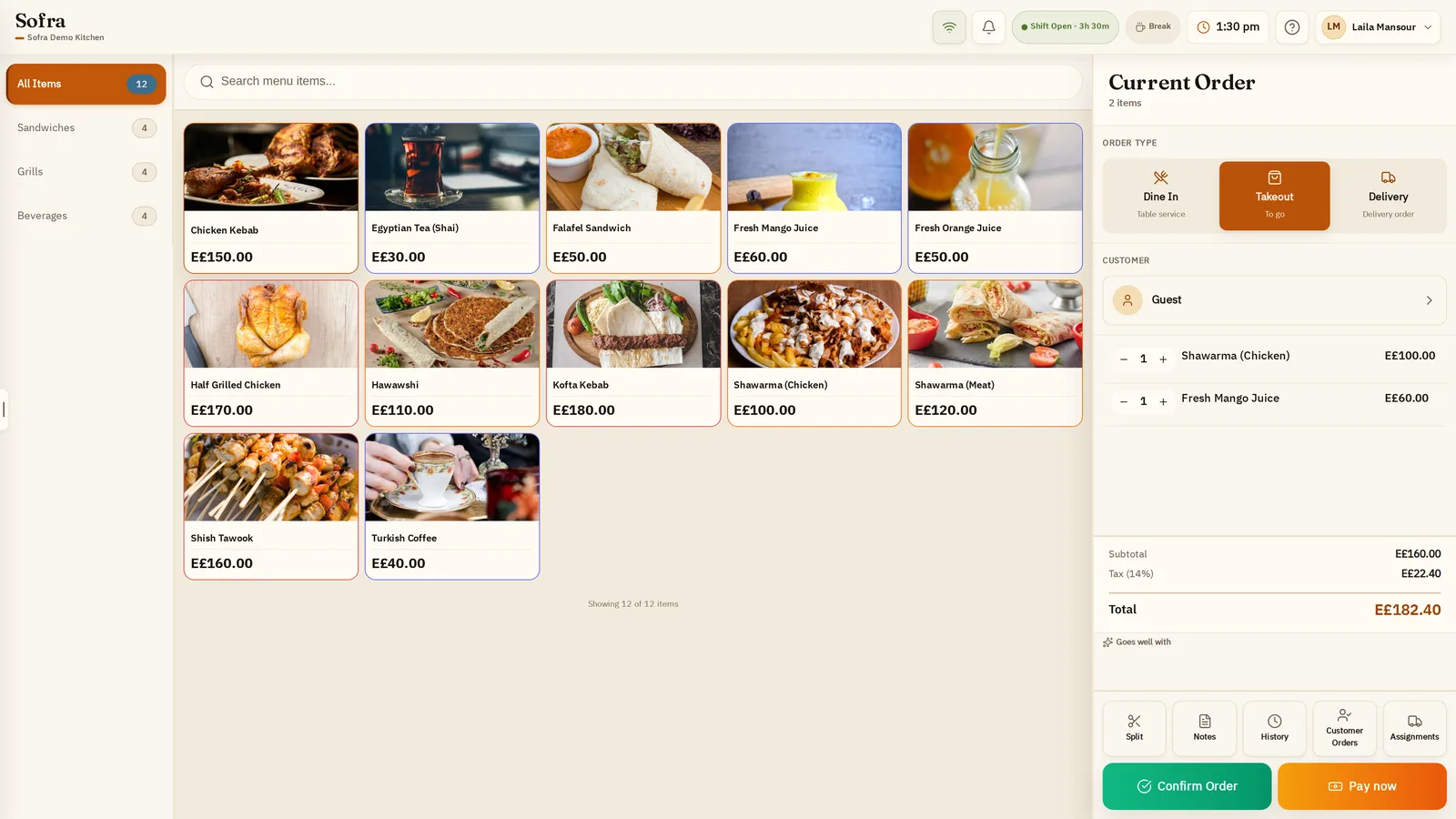
Under Order Type, choose Dine In, Takeout or Delivery. You only see the types your business uses.
Step 3: Send it to the kitchen
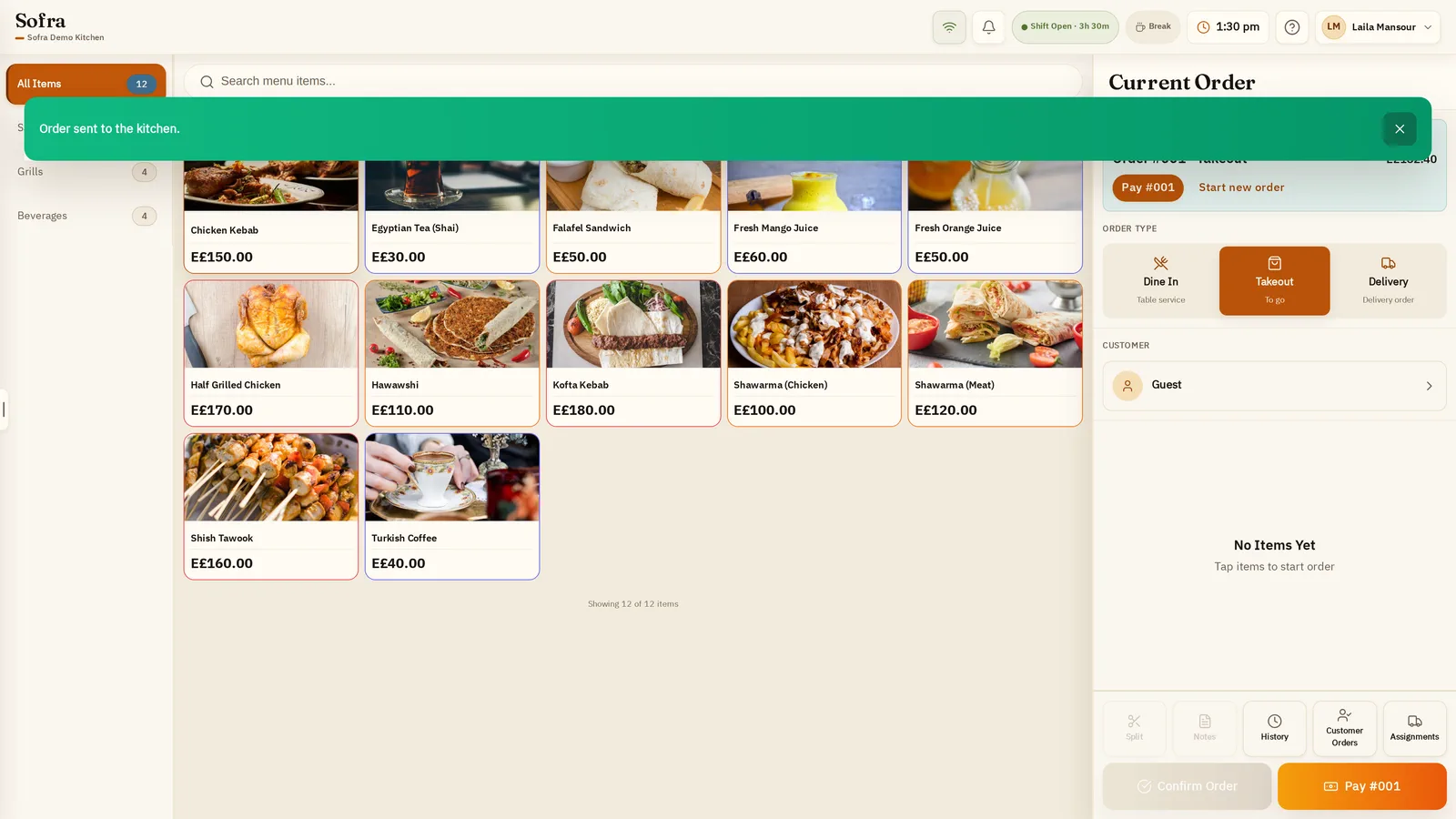
Tap Confirm Order, check the order on the summary that opens, and tap Confirm Order again. The POS shows Order sent to the kitchen. and clears the screen for the next customer, while the kitchen starts on the order.
Step 4: Open the payment
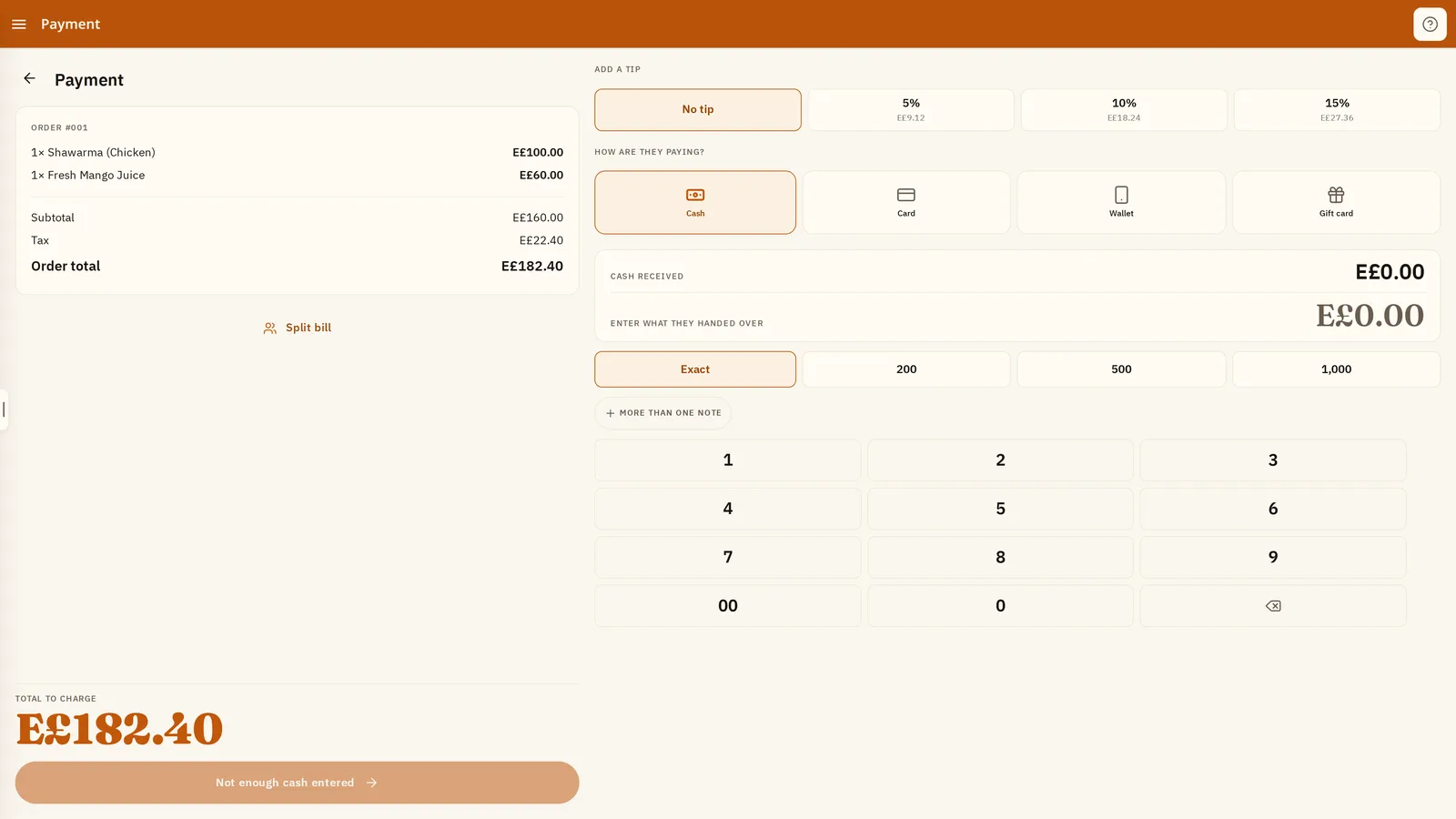
When the customer is ready to pay, tap History, find their order under Recent Orders and tap Pay followed by the amount. If the customer pays as soon as they order, tap Pay now instead of Confirm Order: it sends the order to the kitchen and takes you to payment in one tap. Either way, the Payment screen opens and asks How are they paying?
Step 5: Take the cash
Tap Cash, then tap the note the customer handed over (such as 200), or type the amount they gave you. Tap Exact if they paid the exact total. The POS shows Cash received and the Change due.
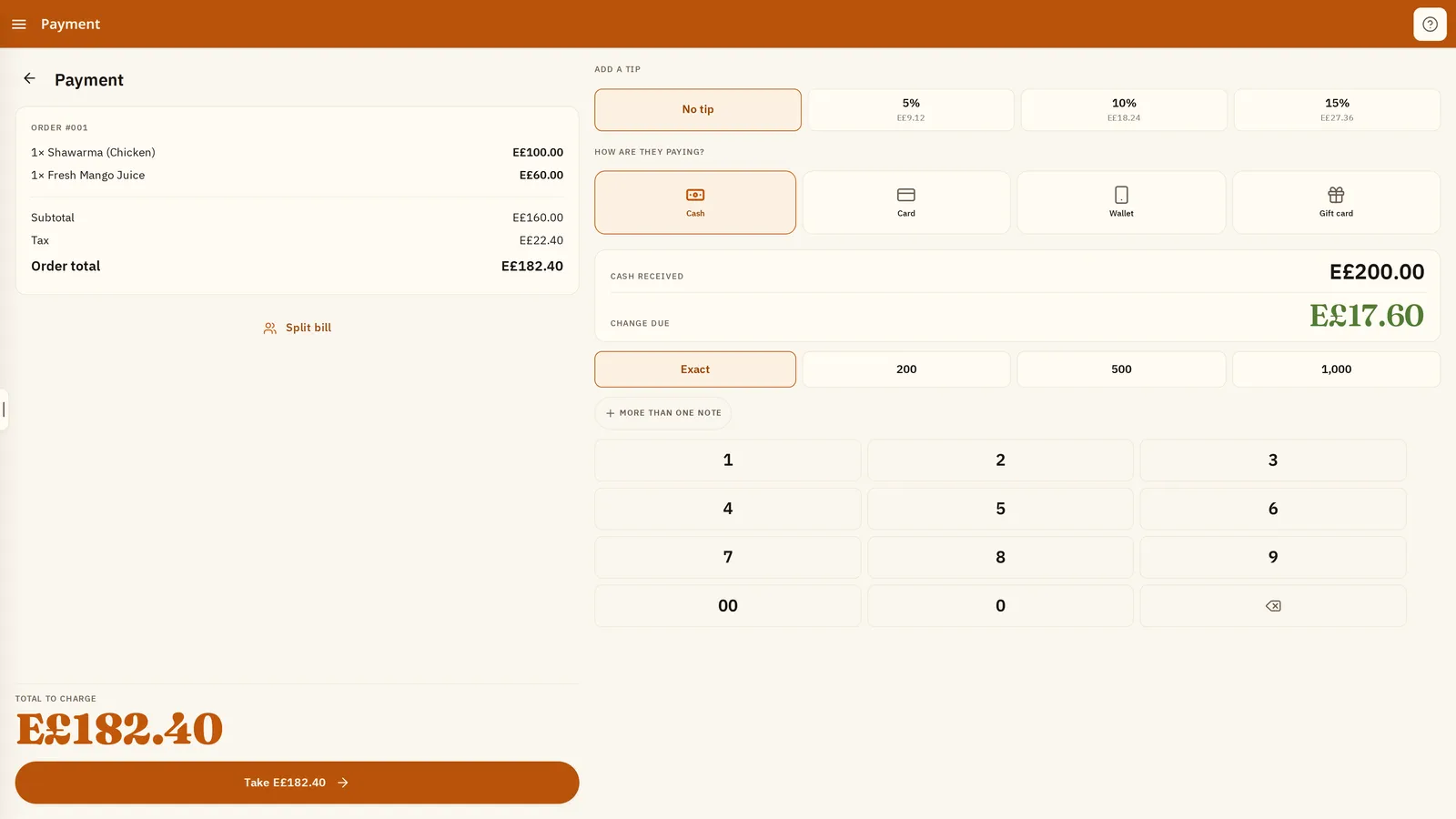
Step 6: Finish the sale
Tap Take followed by the amount. When you see Paid in full, give the customer their change. Tap Print receipt if they want a receipt, then Start a new order.
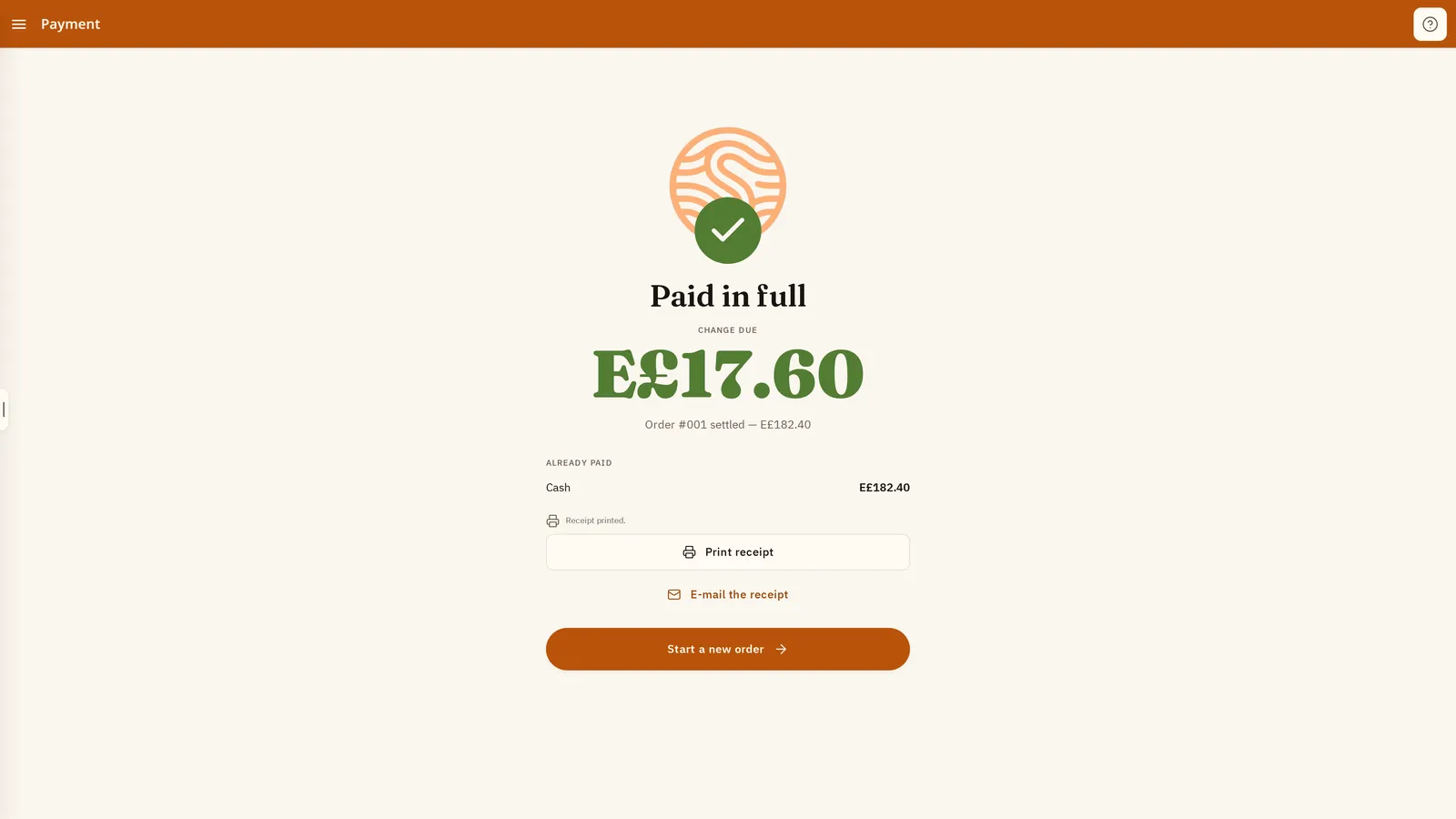


If something goes wrong
- The POS says the order was not sent to the kitchen. You see Not sent to the kitchen with "This business does not send orders to a kitchen, so the order was not sent. Take the payment, or reopen it from Order History." Your business is set up without a kitchen. Take the payment straight away.
- The payment button says Not enough cash entered. The amount under Cash received is less than the total. Type the full amount the customer gave you, or tap Exact.
- The POS asks you to open your cash shift. Cash goes into your own drawer, so open your shift with the shift button at the top of the screen, then take the payment again.
Related
- How do I add an item to my menu? (article coming soon)
- How do I set my VAT rate? (article coming soon)